Quick answer
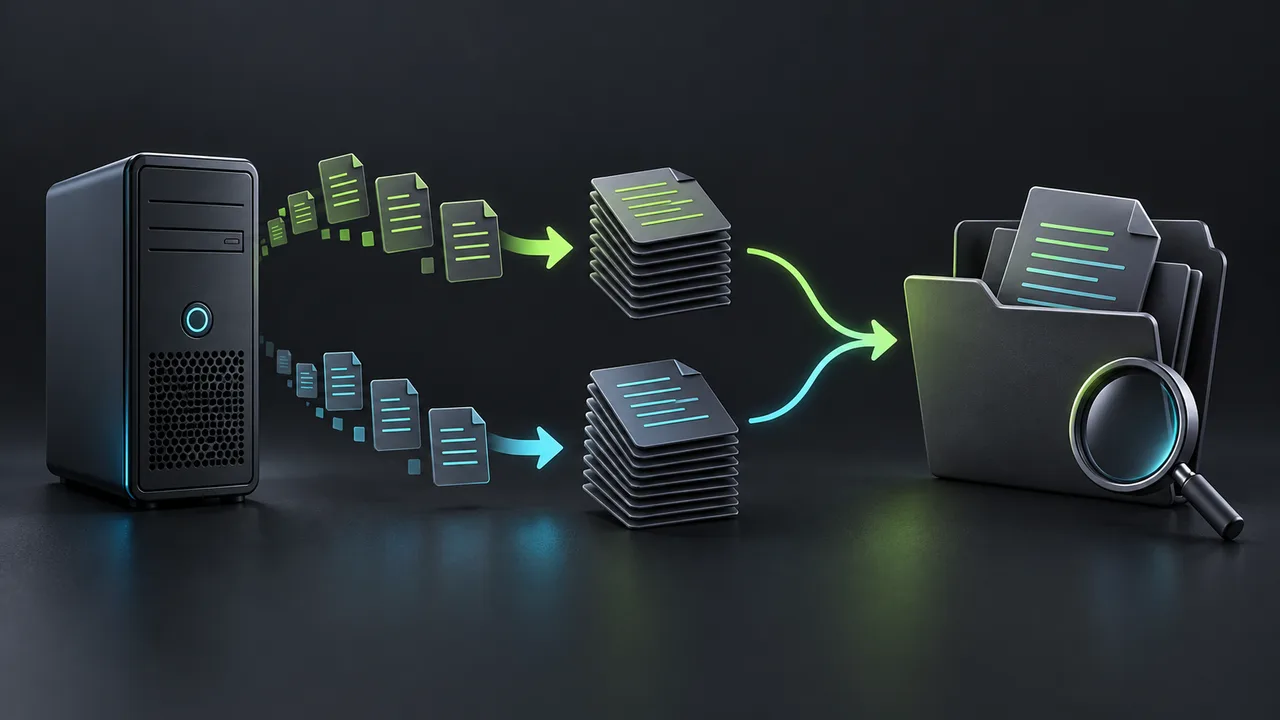
To send NinjaTrader diagnostic logs, use Control Center → Help → Message Support and leave Log and Trace Files checked. If NinjaTrader cannot stay open, shut it down, open Documents/NinjaTrader 8 in Windows File Explorer, compress the log and trace folders separately, and attach both ZIP files to your support reply.
Send the full diagnostic package from NinjaTrader
The current NinjaTrader support article calls the menu item Message Support. Open it from Control Center → Help, choose the request category and enter the email associated with your account. Include Agent with your existing case number or representative’s name so support can connect the files to the inquiry.
Keep Log and Trace Files selected; NinjaTrader says it is checked by default. Sending through this window compresses and attaches the diagnostic files. If you receive an automated response, the documented instruction is to reply with Agent to reach the team.
Describe the symptom in one sentence: the platform closed, a connection failed, a chart stopped updating, or a strategy stayed disabled. Include the exact error and when it happened. A recovery notification is useful context, but it does not replace the platform’s diagnostic files.
Collect log and trace files when NinjaTrader will not stay open
NinjaTrader’s manual collection instructions begin by shutting down the Desktop app. Do this only after addressing any open positions or orders through your usual trading controls; gathering files is not a trading-risk remedy.
- Open Windows File Explorer with Windows key + E and navigate to Documents/NinjaTrader 8 for the affected Windows user.
- Select the log folder, right-click and choose Compress To → ZIP File. Repeat for the trace folder.
- Attach both compressed folders to your reply in the existing support case. Keep the original folders in place.
| What you collected | What it provides |
|---|---|
| log and trace ZIP files | The two diagnostic folders requested by NinjaTrader support. |
| A Log-tab CSV or Excel export | An export of the visible event grid; useful for discussing specific messages. |
| A screenshot of an error | Visible context, but long messages may be truncated and account details may be exposed. |
Use the Log tab to locate the exact event
The Control Center Log tab shows application and trading events for the current day. Each event has a date, category and message. Hover over a clipped message to read it in full; right-click the grid and use Find to locate an error term. The same menu exports the grid to CSV or Excel.
An overnight incident may cross midnight. Do not assume today’s visible grid contains the start of yesterday’s failure. Give support the full dated interval and the log and trace package, rather than only a cropped screenshot from after recovery.
Add context that distinguishes the failure from the recovery
Keep a short case note alongside the original files. Record what you observed and label estimates as estimates. The following example fields help support locate the event; they are not measurements from a platform test.
| Field | Useful detail |
|---|---|
| Incident interval | Calendar date, local start/end time, time zone and UTC offset; include both dates if it crossed midnight. |
| Exact symptom | Copy the complete error text. Separate platform launch, provider login, missing prices and disabled strategy symptoms. |
| Environment | NinjaTrader version, Windows user or VPS host involved, connection provider and affected instrument expiry. |
| Actions already taken | Restart, reconnect or configuration change, with time and observed result. Avoid describing an attempted action as successful. |
| Recovery evidence | When current prices resumed, the intended account appeared and the intended strategy state was observed. |
| Attachments | Both log and trace ZIPs, relevant screenshots or grid exports, and the support case number. |
Keep originals private and separate collection from repair
Preserve the original diagnostic files for the support case. For anything you post publicly, make a separate redacted copy: remove account identifiers, personal details and credentials from screenshots or excerpts. Redaction should not overwrite the private originals that support may need.
NinjaTrader also offers Log and Trace files as a selectable backup component. A diagnostic package and a full configuration backup serve different purposes; do not send an entire backup archive just because support requested logs.
Collecting files does not establish the cause of a database or assembly error. Use the matching diagnostic guide and support’s findings before deleting files, resetting a database or replacing a configuration. Ninja Watchdog recovery events can help explain what was attempted, while the NinjaTrader files support the platform investigation.
Official sources
Protect your setup
Keep NinjaTrader recovery automatic
Monitor NinjaTrader, recover supported interruptions, and receive recovery alerts on your Windows computer or VPS.