Quick answer
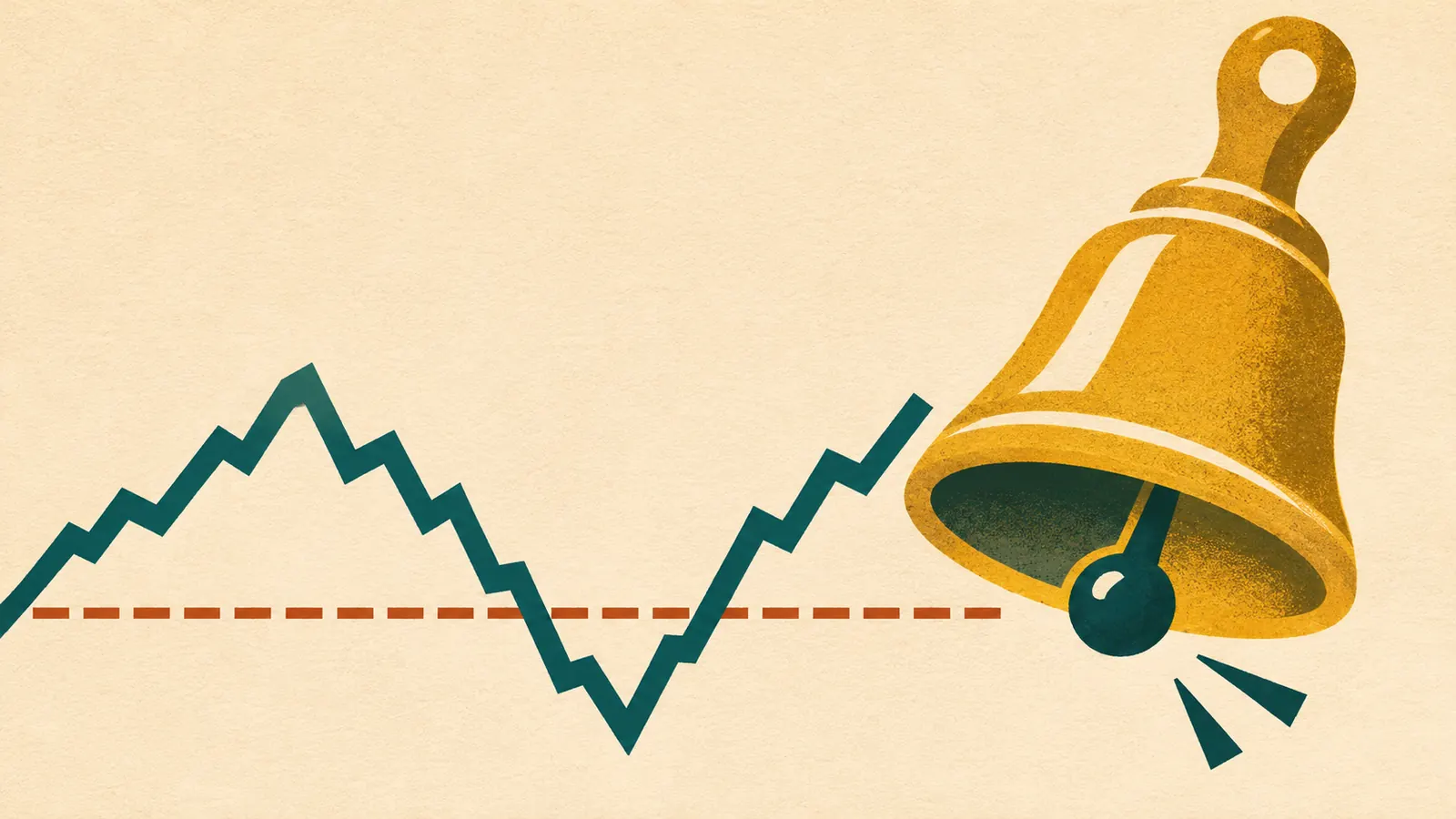
If your NinjaTrader Desktop chart alert fired once, right-click its chart, open Alerts and check Rearm type. Choose “On condition reversed” for one alert each time price leaves your alert range and enters it again. Choose “On timer” for reminders while price stays in range, then set the interval in seconds.
Get one alert each time price moves back above a level
Open Alerts on the chart tab that holds the price series. Select the alert or add one, check Enabled, and open its Conditions. For a simple threshold, choose the chart’s data series, set Price type to Close and Bars ago to 0, then choose Greater and enter 100 as the Numeric value. Set Rearm type to On condition reversed.
Suppose price moves from 99.75 to 100.25. The alert fires. At 100.50 the condition is still true, so there’s no second alert. A trade at exactly 100 makes “greater than 100” false and rearms the alert. A subsequent move to 100.25 can trigger it a second time.
With several conditions, “If All” requires every condition to be true. “If Any” requires only one. Under “If Any,” a second condition that still holds can keep the alert from rearming after price moves back across your level.
Choose how often the alert can repeat
Rearming makes a rule eligible to trigger again. The chart condition still determines whether it fires.
- Use “On timer” to set a cooldown. For a reminder at most once a minute, enter 60 in Rearm seconds. A price that stays beyond the threshold can qualify again after the interval.
- Choose “On bar close” to rearm when the next bar closes on the data series used by the condition. On a chart with several series, check which one the rule uses.
- Choose “Never” for a one-time trigger that stays in the list of configured alerts. Choose “Remove Alert” to delete the chart alert after it fires.
What On connect does when a feed drops
If you select On connect, manually disconnecting from the data provider or shutting down NinjaTrader disables the alert. Manually connecting to the provider rearms it.
A temporary connection loss works differently. NinjaTrader keeps the alert active while it waits for the feed and resumes evaluation when the connection returns. A move across your level and back during the gap can therefore go unobserved.
Check whether the chart actually fired
Open Control Center → New → Alerts Log. Match the instrument, time and message to the rule. Double-click the row to open the chart tab that produced it. A matching row confirms the trigger even if you missed the sound or pop-up.
If the row is missing, check the workspace and the log’s Source filter. A log normally receives alerts from its own workspace, and a filter can hide chart alerts. If you find the row, open the alert’s Actions to check which sound, pop-up or Share Service you selected.
Official sources
Connection alerts
Get an email when NinjaTrader disconnects
Ninja Watchdog can email you when your platform connection drops. SMS and WhatsApp alerts are coming soon.