Quick answer
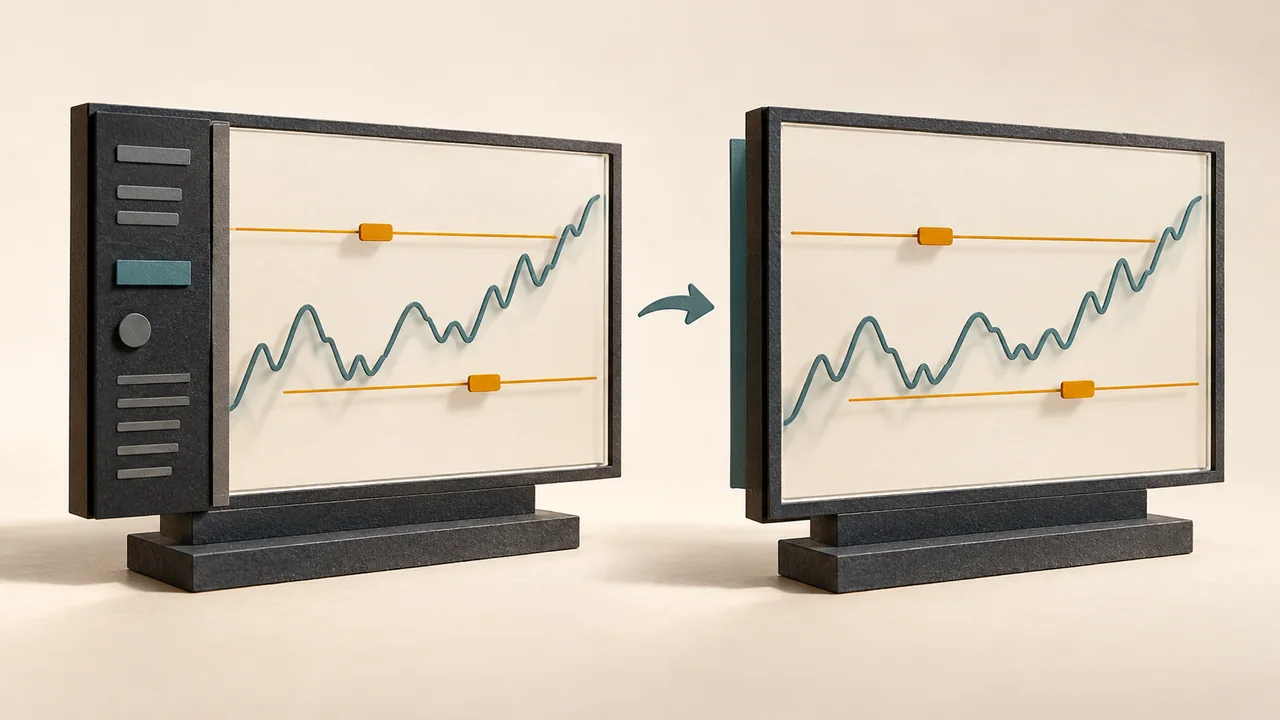
To restore the side panel in NinjaTrader 8, select Chart Trader from the chart toolbar menu or the Chart trader setting in chart Properties. Chart Trader (Hidden) only collapses the panel: order and position lines remain available, and orders can still be placed and managed on the chart.
Restore the panel, including when its toolbar icon is missing
Open the Chart Trader toolbar menu and select Chart Trader instead of Chart Trader (Hidden). The full panel appears on the right of the chart.
If the icon is missing, right-click inside the chart and choose Properties, or use the default Ctrl+T shortcut. Find Chart trader and select the full display mode. Chart Properties also contains a Chart Toolbar list for controlling which toolbar items are shown.
Use the chart's Properties window for this display setting. The Properties menu inside the Chart Trader panel opens a different window for its order lines, colors and other trading-interface settings.
Hidden and disabled are different states
NinjaTrader documents three display states. Choose the one that matches whether you want the panel visible and chart trading available.
| Display state | Side panel | Chart trading |
|---|---|---|
| Chart Trader | Visible | Order and position display and chart order controls are enabled. |
| Chart Trader (Hidden) | Collapsed | Order and position display and chart order controls stay enabled. |
| Fully disabled | Not displayed | Chart Trader functionality is disabled for that chart. |
An order line is still a control when the panel is hidden
Do not treat a collapsed panel as a locked or read-only chart. In Chart Trader, clicking an order label starts a price modification: a ghost line appears, and a second click selects the new price. Esc cancels that pending modification.
Cancelling an order is a separate action using the cancellation control on its line. Changing the panel's display mode is not a substitute for checking whether an order was cancelled or a position was closed.
This is also separate from simulation routing. If the panel is visible but the Account selector only offers Sim101, investigate Global Simulation Mode and account availability.
Panel restored, but an order or position line is missing
First read the selected Account and Instrument. Chart Trader shows orders and positions for that combination, not every account connected to NinjaTrader. On a chart with multiple Data Series, use the Instrument dropdown to check which instrument Chart Trader is controlling.
A market order does not appear as a resting order line. NinjaTrader directs you to the Control Center Orders tab to review market orders, so the absence of that line alone does not establish an order failure.
If the relevant price is outside the visible scale, inspect Auto scale in Chart Trader Properties: right-click inside the restored side panel and choose Properties. This setting determines whether orders and positions are included in the chart's automatic scaling.
These checks distinguish a display selection or scale issue from a missing order. Confirm the actual order and position state before changing it.
Official sources
Platform monitoring
Keep platform health in view
Ninja Watchdog monitors NinjaTrader and connection health; it does not directly place, modify or cancel orders. Email alerts are available today. SMS and WhatsApp alerts are coming soon.