Quick answer
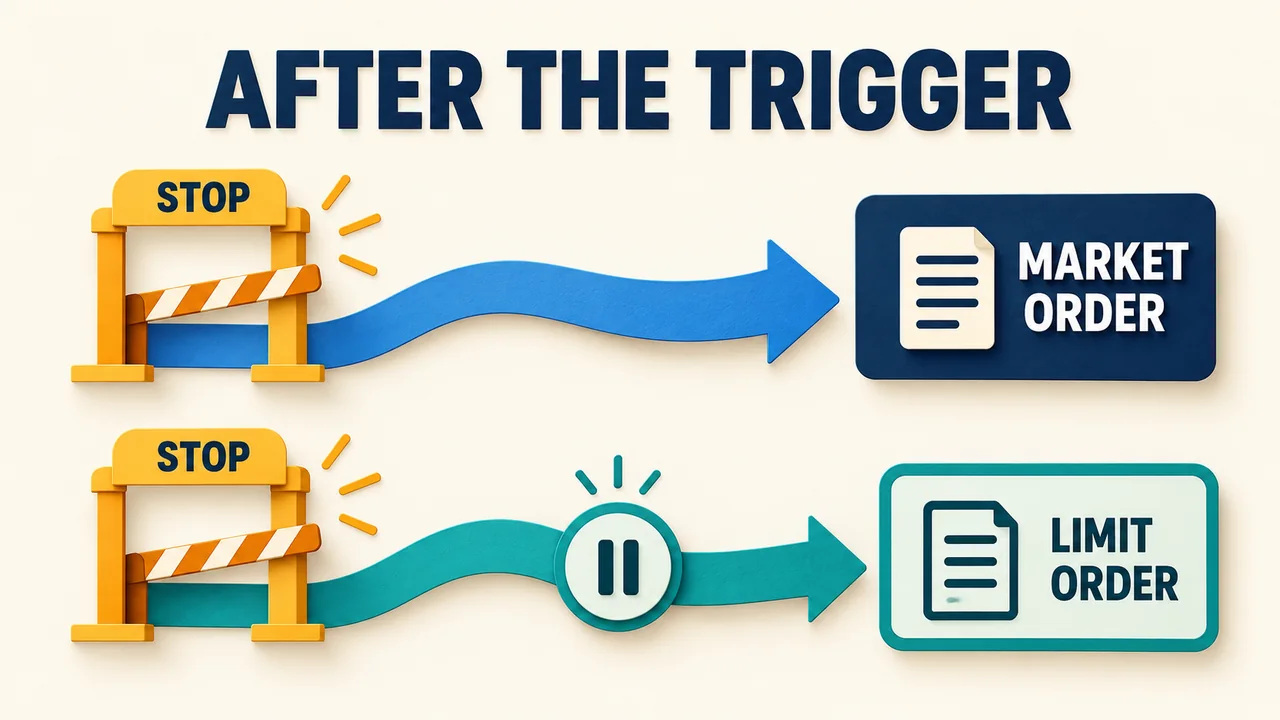
In NinjaTrader, a stop-market becomes a market order when triggered; a stop-limit becomes a limit order. The stop-market does not fix the execution price. The stop-limit restricts the acceptable price but can remain unfilled. Reaching the stop price is not confirmation that an order filled.
The trigger and the fill are separate events
Consider an illustrative sell order with a stop at 100.00. For the stop-limit version, set a limit of 99.75. If it triggers while buyers are available only at 99.50, that limit does not permit a sale at 99.50. The order may remain unfilled.
A stop-market has no such user-set limit and may execute below 100.00. Neither the trigger nor this simplified example guarantees a complete fill. Available liquidity and the applicable execution rules still matter.
| Order behavior | Stop-market | Stop-limit |
|---|---|---|
| After the trigger | Market order | Limit order |
| Execution price | Can differ from the stop price | Limit price or better |
| Main distinction | No user-set limit price after triggering | Price restriction can prevent execution |
SuperDOM offsets are ticks between two prices
In SuperDOM, the default stop-market gesture is Ctrl plus the middle mouse button; the default stop-limit gesture is the middle mouse button. The “Middle mouse button is stop market” property reverses those roles. Check the current property rather than assuming another trader's mouse shortcut applies.
For a stop-limit, the numeric offset is a number of ticks, not a dollar amount or an extra trigger delay. A positive one-tick offset places a buy limit one tick above its stop, or a sell limit one tick below its stop. The instrument's tick size determines the price difference.
The “Stop-limit offset” property can submit that configured offset in a single click. A negative offset is a different case: NinjaTrader automatically uses a Simulated Stop order, shown with a yellow order flag.
A Simulated Stop depends on the local platform
NinjaTrader's Simulated Stop is held on the PC. For futures, its price and volume-trigger conditions must be met before it submits a market or limit order. A price touch alone may therefore be insufficient.
This local simulation needs a running platform and reliable incoming market data. NinjaTrader documents that simulation stops when the data stops flowing. A crash or lost internet connection can interrupt the trigger handling.
“Simulated Stop” describes where the conditional order is held. It does not mean the resulting order is necessarily a practice trade: the documentation describes submitting the order live when its conditions are met.
Read the order state and the remaining quantity
In Control Center > Orders, match the account and instrument, then inspect Type, Stop, Limit and State. Filled shows the executed quantity; Remaining shows the unfilled quantity on a partial fill. Avg. Price reports the average execution price, not the requested stop price.
- Accepted means the broker has acknowledged the order; Working means the exchange has acknowledged it. Neither state confirms execution.
- Partially filled leaves quantity to account for. Filled confirms the whole order has executed.
- Cancel pending is a cancellation request in progress. Cancelled confirms cancellation; a request alone does not establish that the order is gone.
OCO links orders; it does not change their type
An OCO group answers which related orders should cancel after a linked event. A stop-market or stop-limit setting answers what order is activated at the trigger. Keep those two questions separate when reviewing a bracket.
Official sources
Platform monitoring
Keep platform recovery separate from order execution
Ninja Watchdog monitors NinjaTrader and its recovery events; it does not directly place, modify or cancel orders. Email alerts are available today, with SMS and WhatsApp coming soon.